CodeDeploy Agent
CodeDeploy Agent (Session Manager)
We need to install the CodeDeploy Agent on your EC2 instance so that AWS CodeDeploy can communicate with it and deploy your application. You have two common ways to configure the CodeDeploy Agent: manually connecting to the instance or using User Data during creation.
Method 1: Manual Installation
- First, we must attach the IAM Role to the instance. Go to the EC2 console.
- Select your instance, click Actions -> Security -> Modify IAM role.
- From the IAM role dropdown, choose EC2InstanceProfileRole (the role we created earlier) and click Update IAM role.
When you trigger a deployment, your code is typically stored as a compressed file in an Amazon S3 bucket. The s3:Get* and s3:List* permissions in this IAM role allow the CodeDeploy Agent running inside your EC2 instance to reach out to S3, find your code, and download it locally for installation.
Pro Tip: Without this IAM role, your deployment will fail at the DownloadBundle stage with an “Access Denied” error because the EC2 instance doesn’t have the permission to open the S3 bucket containing your code.
- Next, go back to the EC2 console.
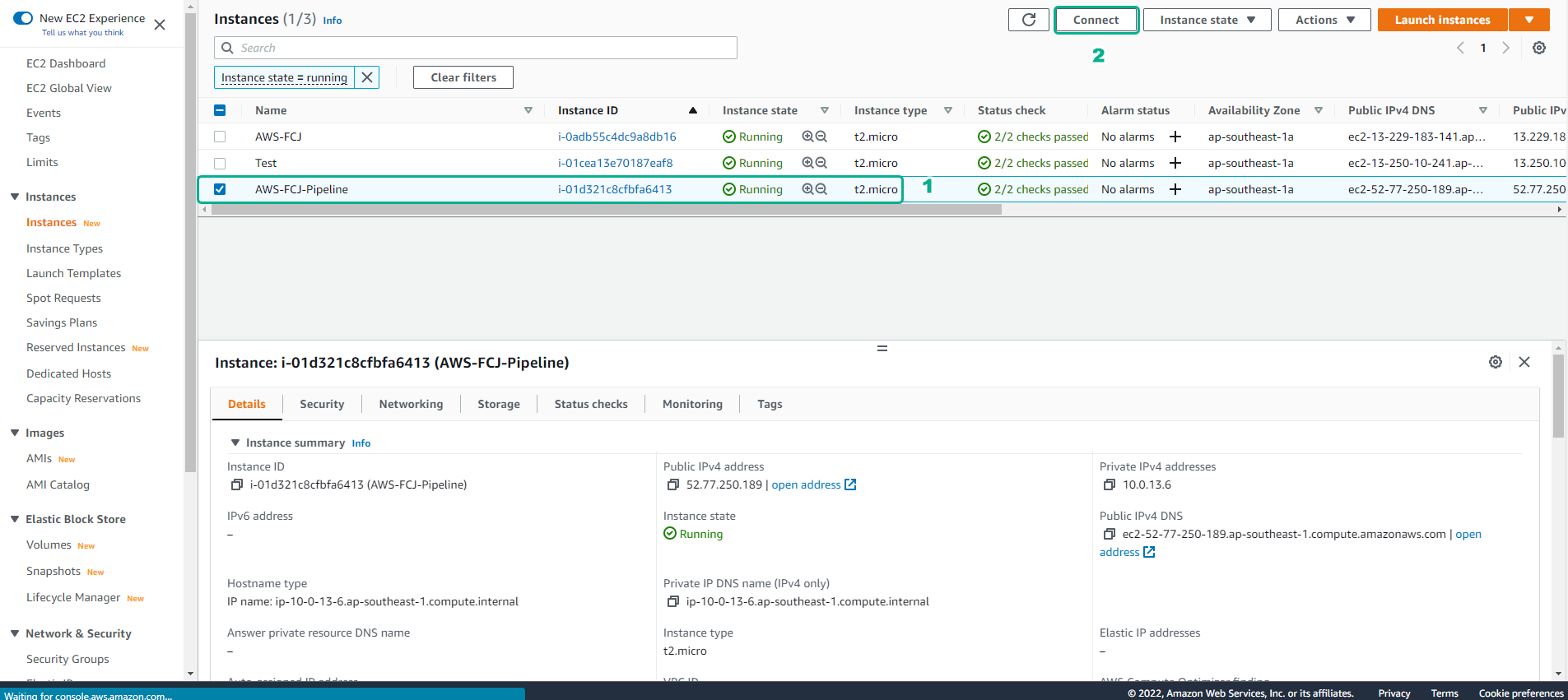
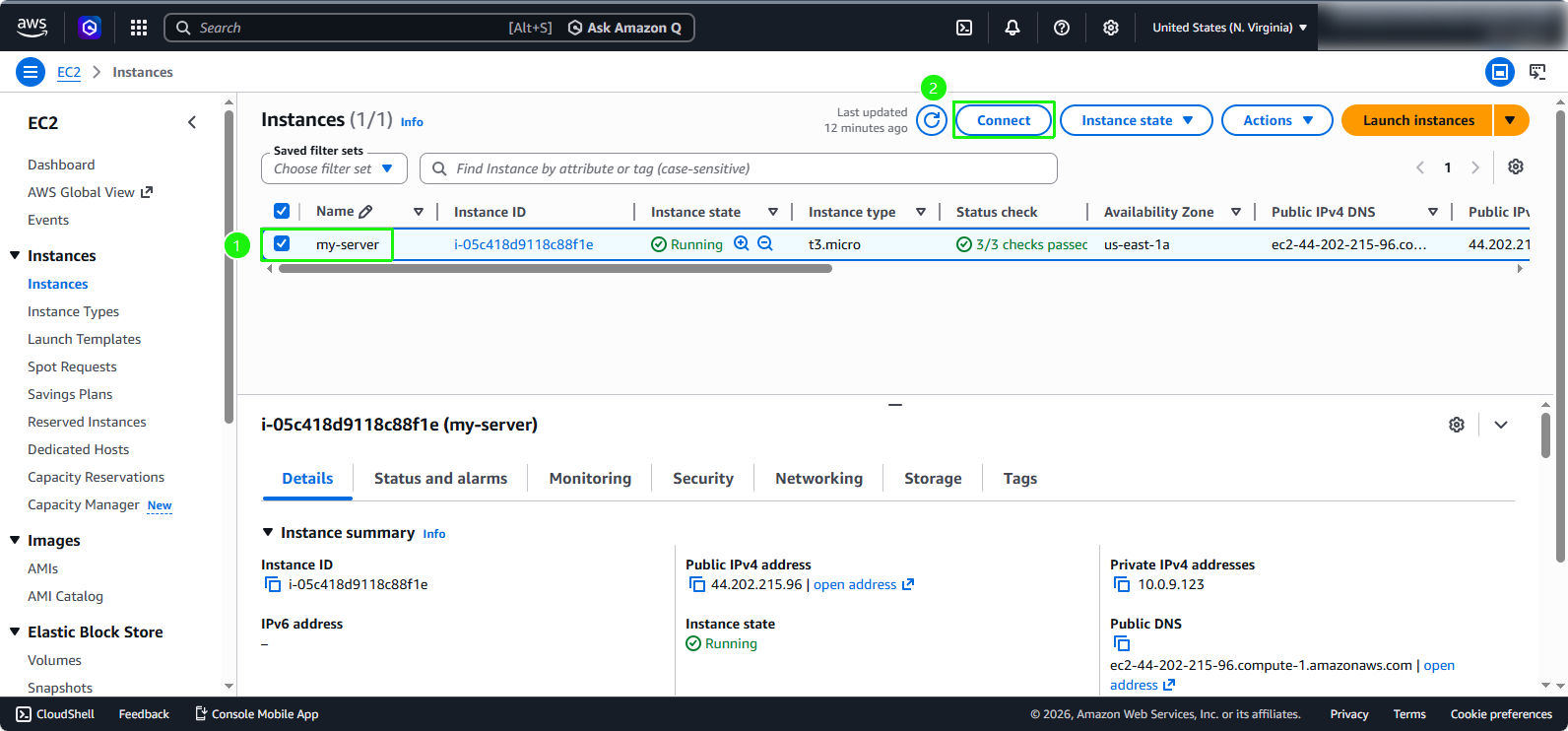
- Select the EC2 instance to which you want to deploy the application (
my-server). - Click the Connect button at the top.
- Select the EC2 instance to which you want to deploy the application (
- You will be redirected to the connection interface.
- For Connection type, select Connect using EC2 Instance Connect (or Session Manager if configured).
- Click Connect.
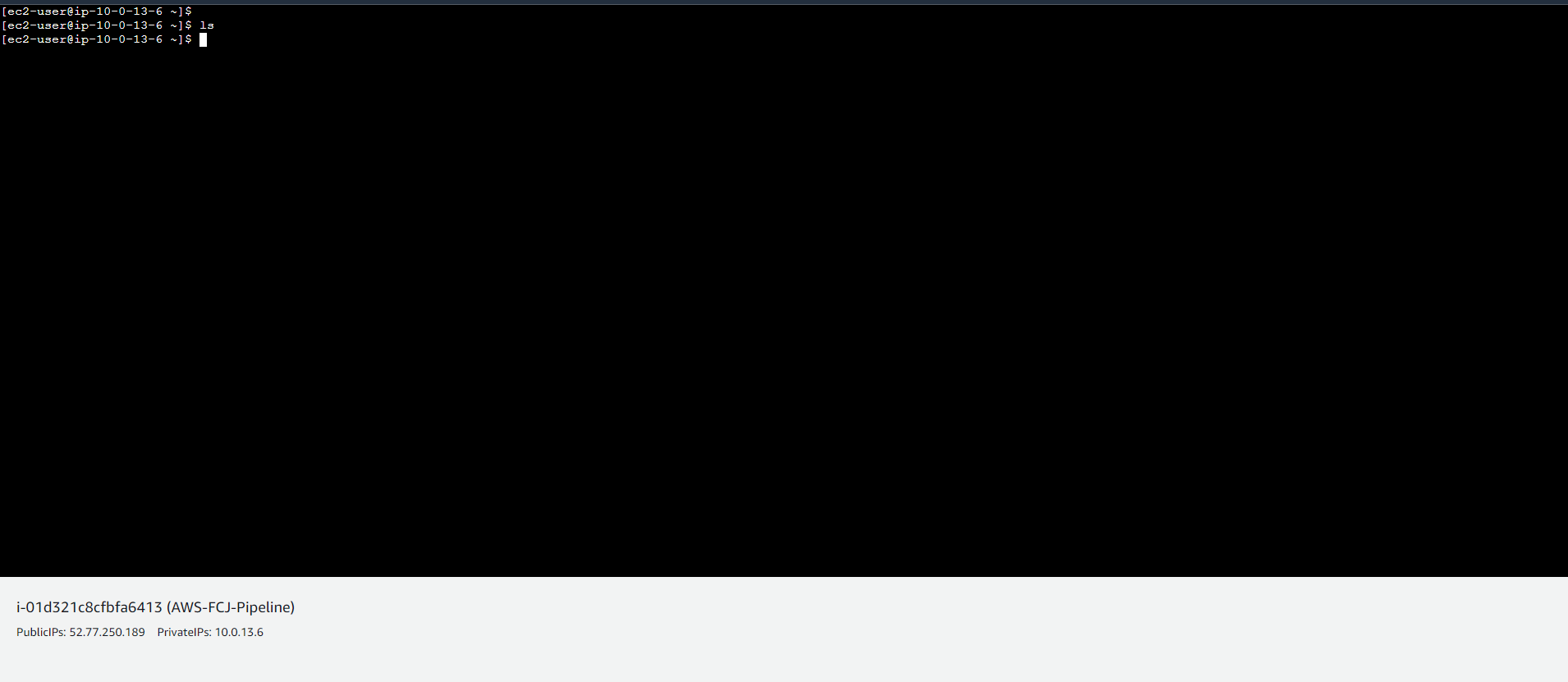
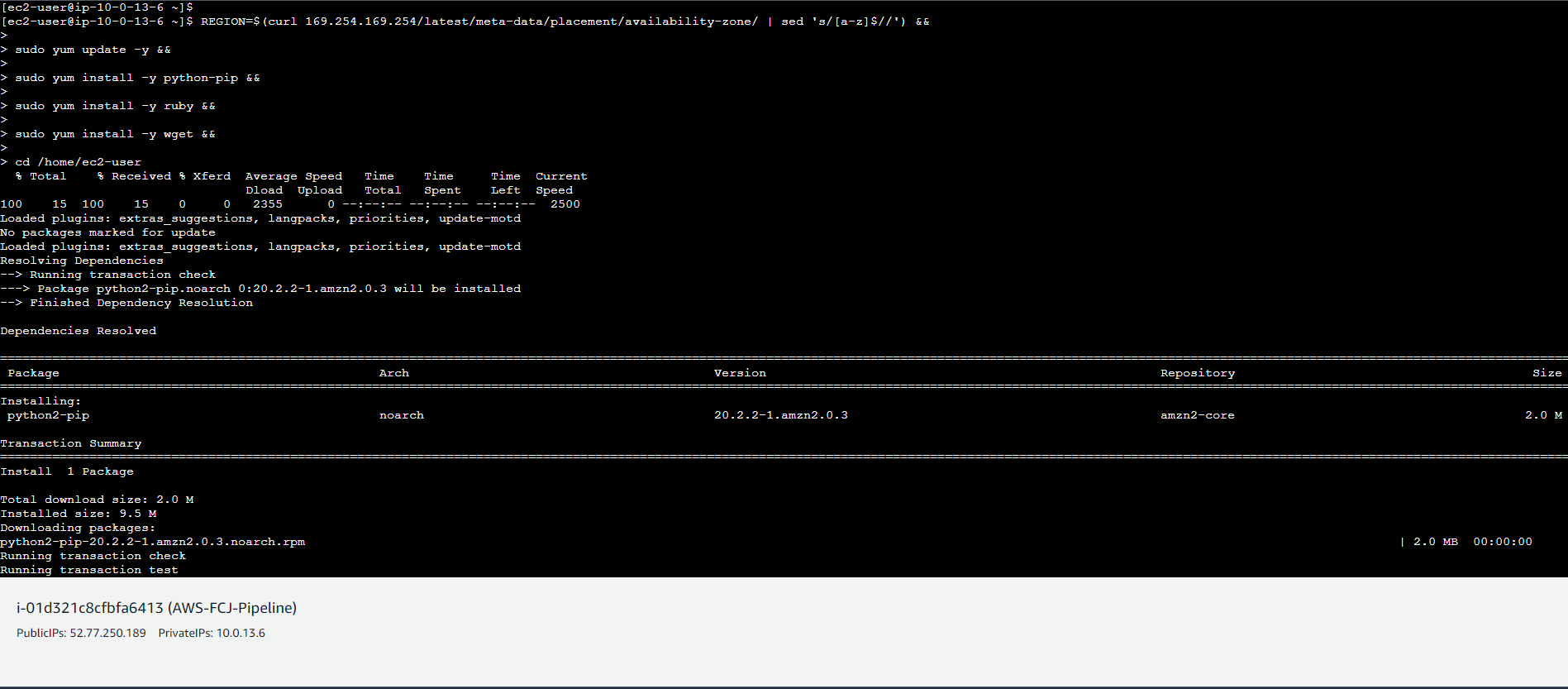
- Once the terminal opens, execute the following commands to install the CodeDeploy Agent:
Important: Make sure you copy the entire block of code below and paste it into the terminal. Press Enter to ensure the last command runs.
# 1. Obtain Token to access Metadata (IMDSv2)
TOKEN=$(curl -X PUT "http://169.254.169.254/latest/api/token" -H "X-aws-ec2-metadata-token-ttl-seconds: 21600") &&

# 2. Automatically obtain Region from internal IP
REGION=$(curl -H "X-aws-ec2-metadata-token: $TOKEN" -s http://169.254.169.254/latest/meta-data/placement/availability-zone | sed 's/[a-z]$//') &&

# 3. Update system and install necessary packages
sudo dnf update -y &&
sudo dnf install -y ruby wget python3-pip &&

# 4. Download and install CodeDeploy Agent
cd /home/ec2-user &&
wget https://aws-codedeploy-$REGION.s3.amazonaws.com/latest/install &&
sudo chmod +x ./install &&
sudo ./install auto &&

# 5. Cleanup and verify service status
rm -f ./install &&
sudo systemctl enable codedeploy-agent &&
sudo systemctl start codedeploy-agent &&
sudo systemctl restart codedeploy-agent &&
sudo systemctl status codedeploy-agent
CodeDeploy Agent (via EC2 User Data)
Method 2: Automated Installation via User Data (Optional alternative)
You only need to follow Method 1 OR Method 2. If you already completed Method 1 above, you can skip this section. This method shows how you could have automated the installation when you first launched the EC2 instance.
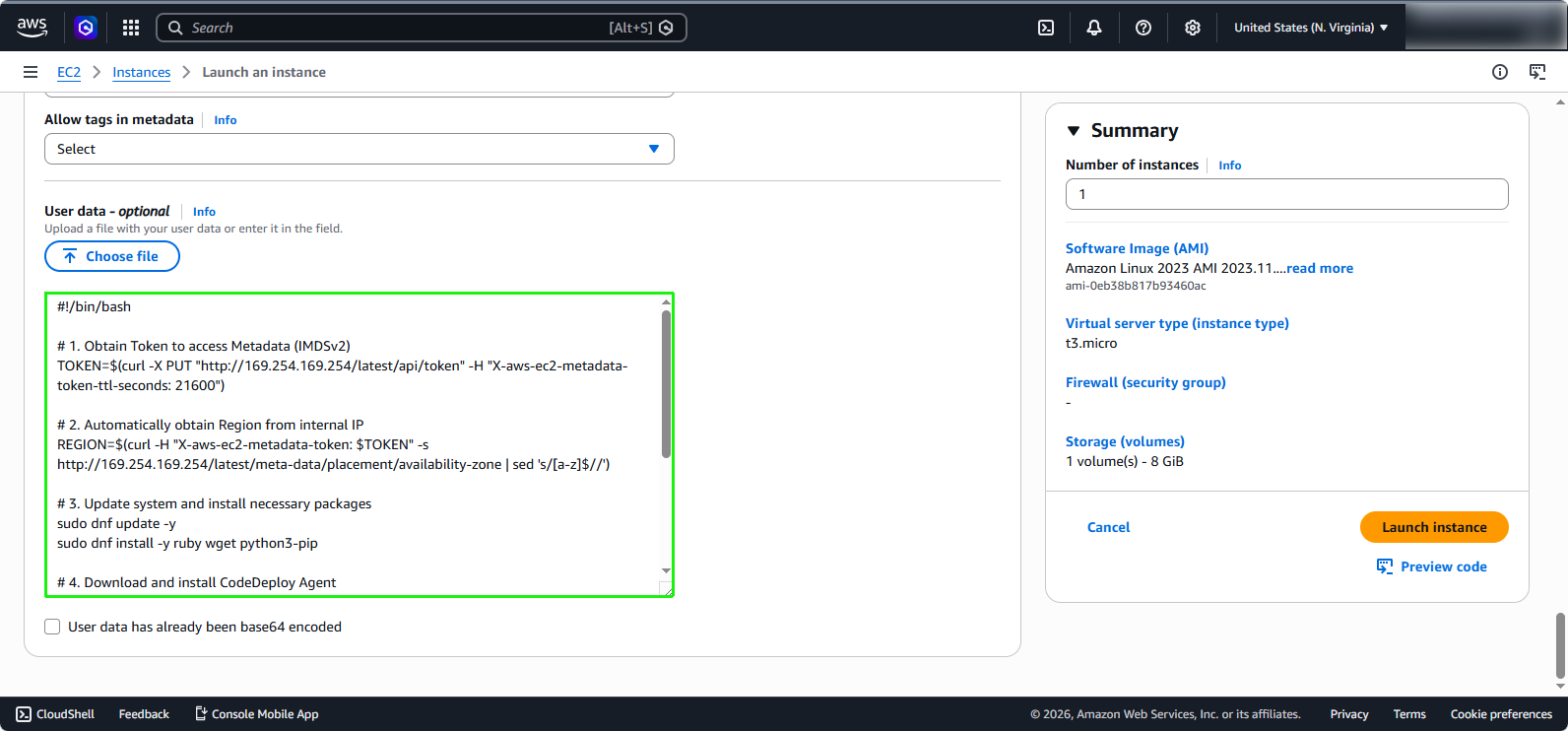
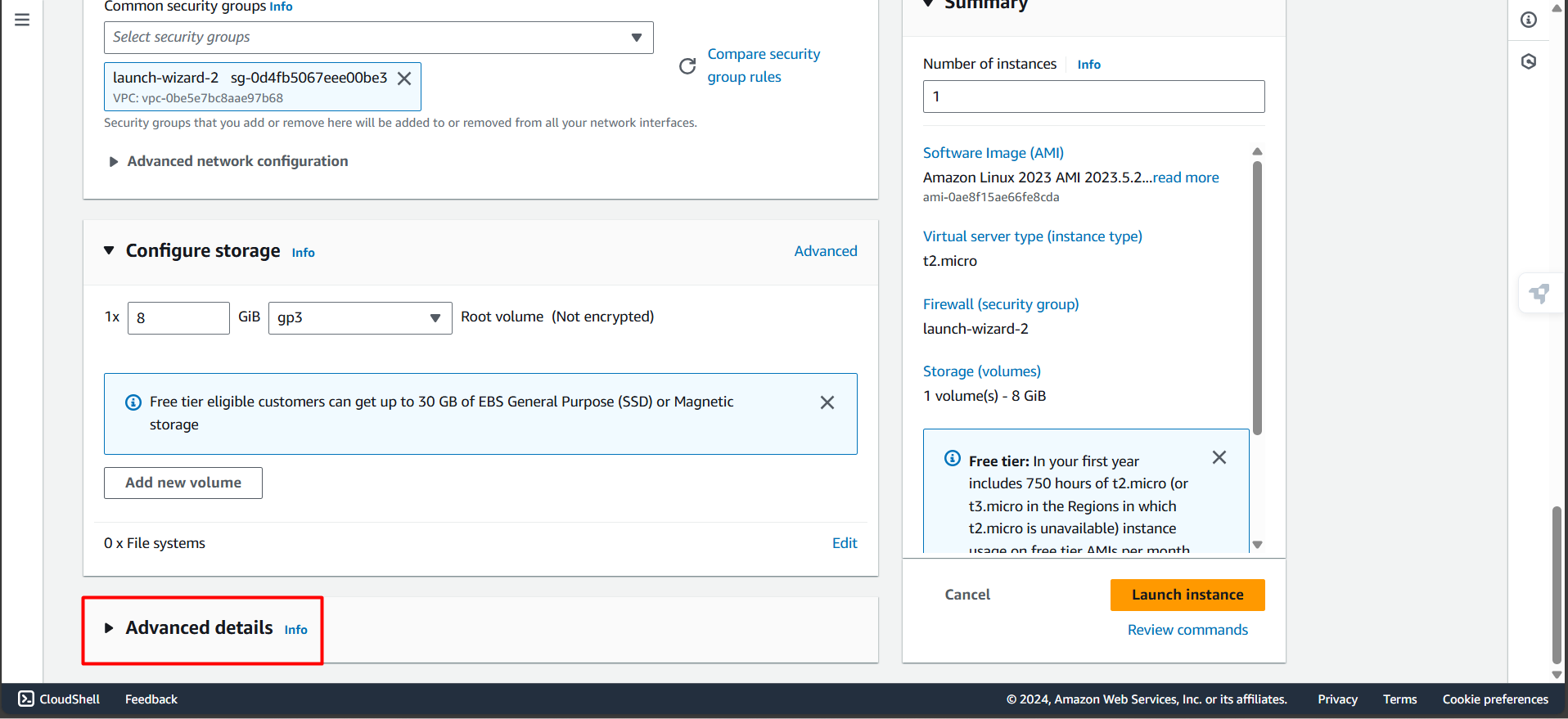
- When creating an EC2 Instance, you can add user data to automatically install the CodeDeploy Agent on boot. Scroll down and expand the Advanced details section.
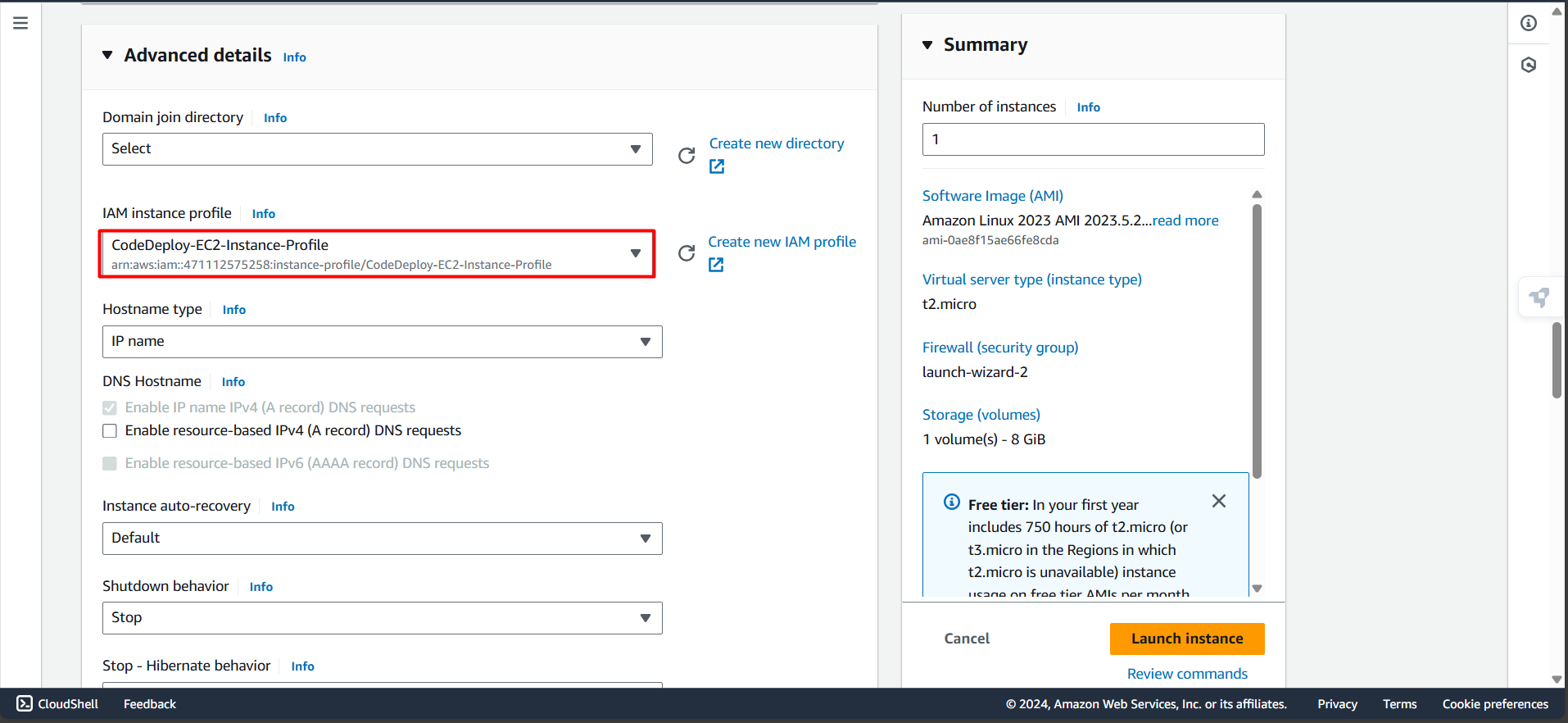
- Under the IAM instance profile, you can also directly select the EC2InstanceProfileRole so you don’t have to attach it later.

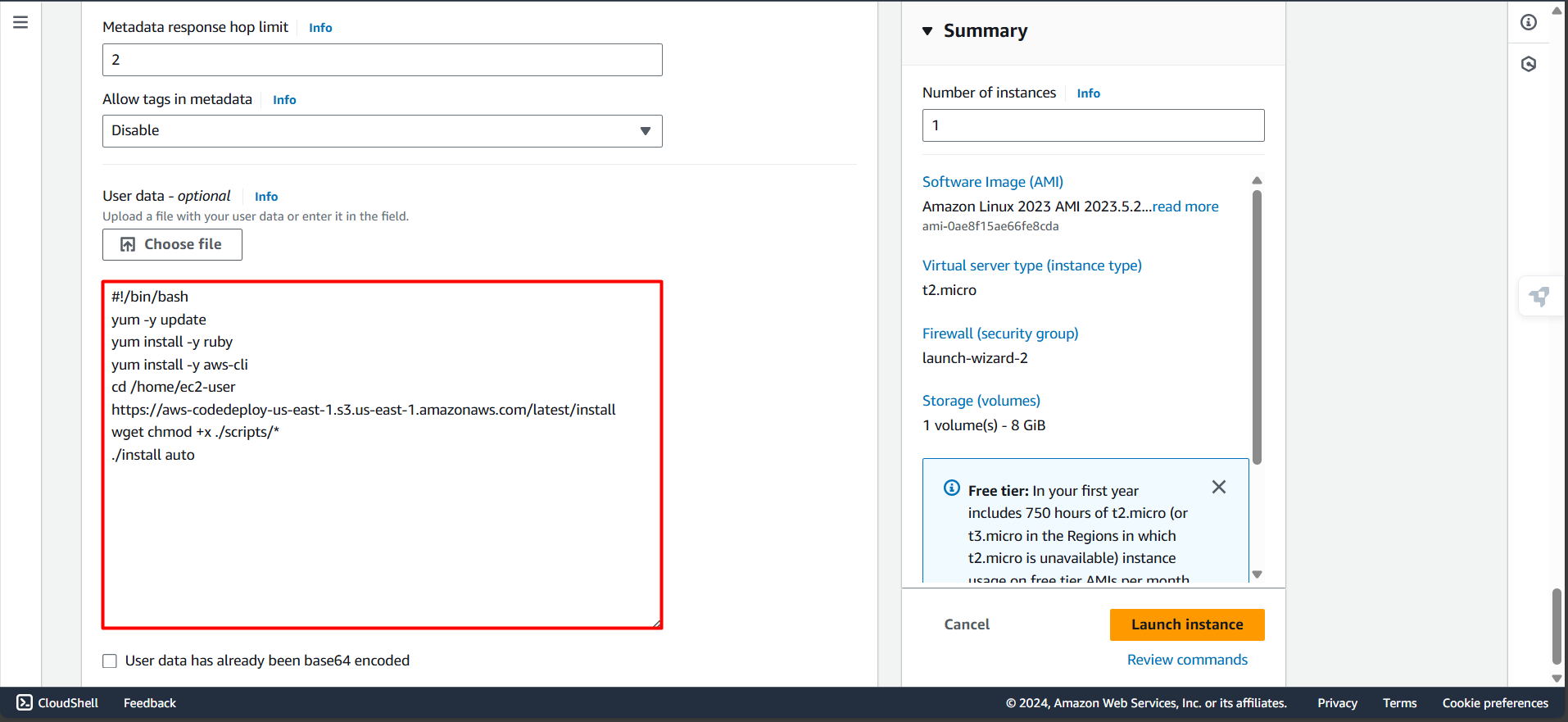
- Scroll to the bottom and proceed to add the following script into the User data field:
#!/bin/bash

# 1. Obtain Token to access Metadata (IMDSv2)
TOKEN=$(curl -X PUT "http://169.254.169.254/latest/api/token" -H "X-aws-ec2-metadata-token-ttl-seconds: 21600")

# 2. Automatically obtain Region from internal IP
REGION=$(curl -H "X-aws-ec2-metadata-token: $TOKEN" -s http://169.254.169.254/latest/meta-data/placement/availability-zone | sed 's/[a-z]$//')

# 3. Update system and install necessary packages
sudo dnf update -y
sudo dnf install -y ruby wget python3-pip

# 4. Download and install CodeDeploy Agent
cd /home/ec2-user
wget "https://aws-codedeploy-$REGION.s3.amazonaws.com/latest/install"
chmod +x ./install
sudo ./install auto

# 5. Cleanup and verify service status
rm -f ./install
sudo systemctl enable codedeploy-agent
sudo systemctl start codedeploy-agent
sudo systemctl status codedeploy-agent